Importing
Two doors, and they do different things. One catalogs a folder where it already is; the other copies, because a photograph inside the Photos library is not a file the app can keep referring to.
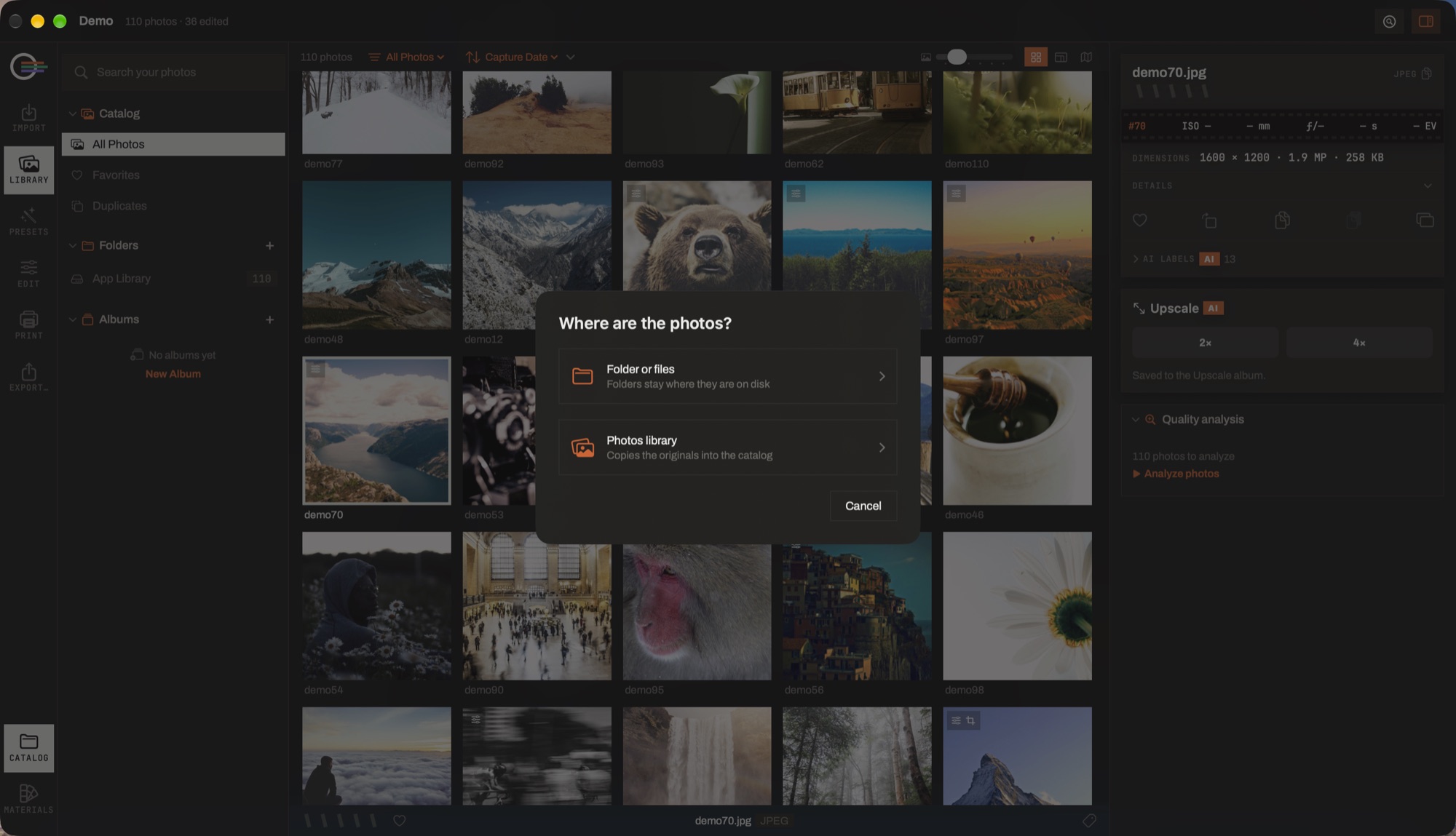
- Folder or files. Catalogues what is on disk where it already is. Nothing is copied, nothing is renamed, and your folders stay yours.
- Photos library. Copies the originals out, because a photograph inside Photos is not a file the app can keep referring to.
- The second question. Picking files asks once more — reference in place, or copy into the managed library — with remember my choice if you only want to answer it once.
- The catalog behind it. An import lands in the catalog you have open; the count in the title bar is what changed.
The two doors
- Import… ⌘I
- Folders or individual files from disk. Folders stay where they are — Lensmith catalogs them in place and asks macOS for permission to keep reading them across launches.
- From Photos ⇧⌘I
- Picks from your Photos library. These are copied, into the App Library, because there is no file on disk to point at.
Dragging image files onto the window works too; Settings ▸ General decides whether they are catalogued in place, copied, or whether you are asked each time.
Duplicates
A file already in the catalog is recognised by content, not by name or path, and is skipped rather than imported twice. The import summary says how many were skipped, and the catalog column has a Duplicates scope that lists the ones you already have.
Nothing fails in silence
Anything that could not be taken is listed by name with a reason, behind Details… on the import banner:
- Unsupported format
- The file is an image the system cannot decode — a format no macOS framework reads.
- Could not be read
- The file is there but unreadable: a permission, a disconnected volume, a bad sector.
- Damaged file
- It decodes as an image and then fails part-way — a truncated download, a bad card.
- Could not be copied
- The copy into the App Library failed, usually for want of space.
- Access denied
- macOS refused the read. The folder offers Re-authorize Access… to grant it again.
Files a folder holds that are not images — notes, sidecars, a stray archive — are not failures and are not listed. Listing them would bury the ones that matter.
What happens afterwards
Three background passes, in this order, each visible in the banner at the foot of the window:
- Previews. Generated for everything newly imported, newest first, so what is on screen fills first. You can stop it; the rest are made as you scroll past them.
- The scene index. What is in each picture, which is what makes searching for sunset or dog work. It reads the previews, not the originals.
- The quality analysis. The only one that waits to be asked — it is the most expensive thing the app does, and it is started from its own panel.
The passes are ordered deliberately: classification reads previews, so running it before they exist would spend the machine building a search index over photographs you cannot see yet.
Sidecars & metadata
Ratings, flags, labels and keywords live in the catalog, which is what keeps them instant on fifty thousand photographs. Settings ▸ Editing decides what else happens:
- Read .xmp sidecars on import — pick up ratings and keywords written by another application.
- Write changes to XMP sidecars — keep a sidecar beside each original, up to date as you work.
- Include the full edit in sidecars — not only the metadata but the develop settings.
⌘S writes metadata out to the files on demand, and Write sidecars for everything now brings the whole catalog into line in one pass.