Browsing & rating
The Library is what you have: the folders you already keep, catalogued where they are. It is the screen Lensmith opens on, the one every other module borrows its selection from, and the one you come back to with Esc.
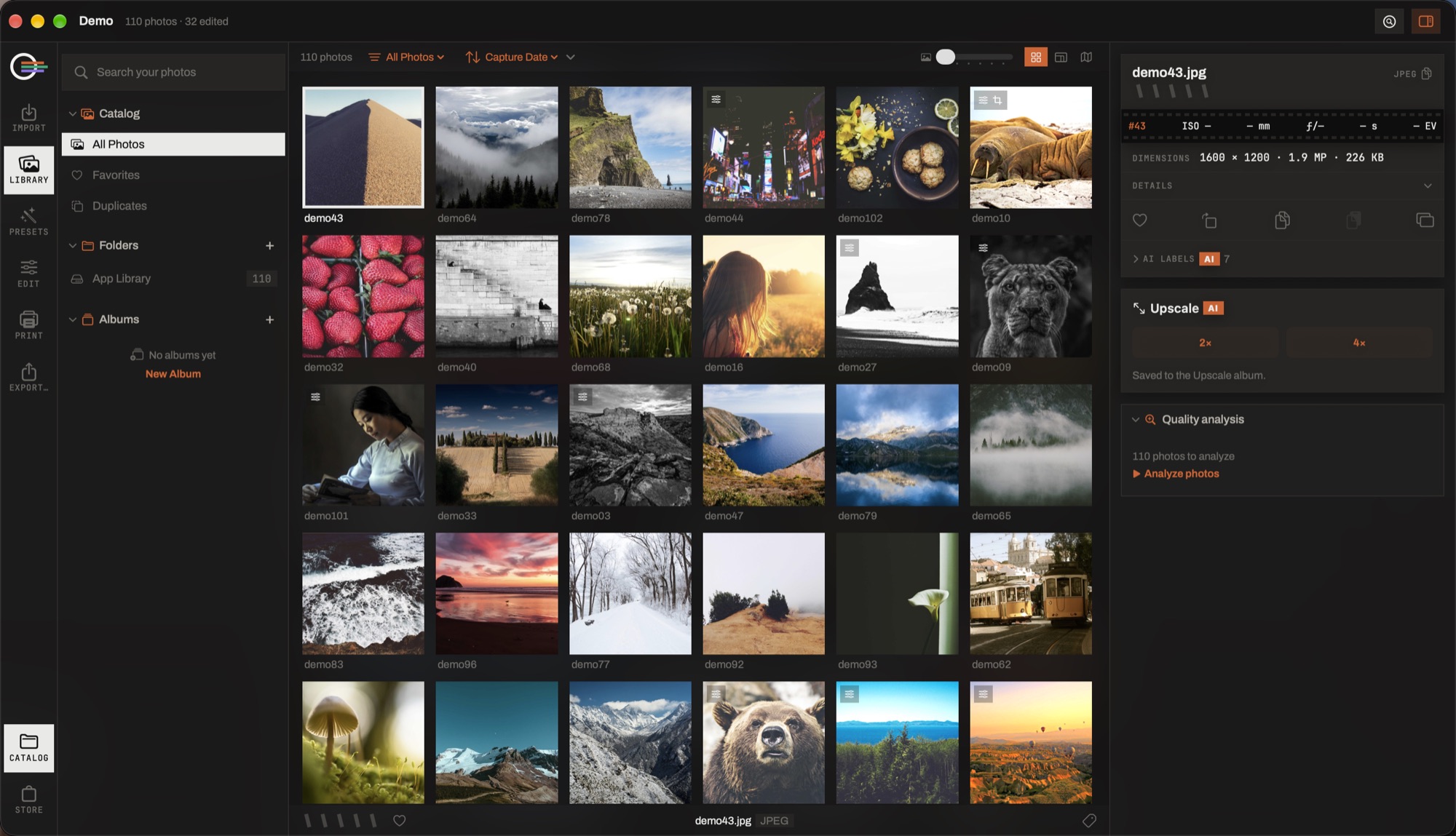
- The module rail. Import, Library, Presets, Edit, Print and Export down the left edge, with the catalog button at the bottom. The mark at the top opens Settings.
- The catalog column. Everything you can point the grid at: the whole catalog, your folders as they sit on disk, albums, smart collections and tags.
- The filter bar. How many photographs the grid is showing, what it is showing (the scope menu), in what order, at what size, and as a grid, a detail view or a map.
- The grid. One tile per photograph, with its quality score in the corner once the analysis has run, and badges for what has been done to it.
- The information column. The focused photograph's file, camera and exposure, what the scene index found in it, and the actions that act on the selection — upscale, merge, quality analysis.
- The foot of the window. Stars and the favourite for the focused photograph, and its name.
The catalog column
Everything here narrows what the grid shows. Nothing here moves a file.
- All Photos
- Everything in this catalog.
- Favorites
- What you have hearted.
- Duplicates
- Files that are the same by content, however they are named and wherever they sit.
- Folders
- The folders you imported, as they are on disk, with a count each. Synchronize re-reads one for files added or removed behind the app's back.
- App Library
- The copies Lensmith holds itself: imports from Photos, merges, upscales and captures. Everything else stays where you put it.
- Loose Files
- Images imported one at a time rather than as part of a folder.
- Albums
- Hand-made sets. A photograph can be in as many as you like and is not copied into any of them.
- Smart Collections
- A saved search. Build a filter you like, save it, and it stays live as the catalog grows.
- Tags
- Your own keywords, as a tree.
Grid, loupe and preview
⌘1 or G is the grid, ⌘2 or E the loupe, and Space takes a quick look at the photograph under the cursor without leaving the grid. ← and → step through whatever is on screen, in the order the sort menu sets.
The slider in the filter bar sets how many photographs fit across, in whole columns, and the switch beside it decides whether a tile is filled or fitted. Both are remembered.
Selection follows the usual rules and every action applies to the whole of it: ⌘-click toggles one, ⇧-click extends from the last one you clicked plainly, ⌘A takes everything the grid is showing and ⌘D lets go.
Stars, flags and labels
Three independent verdicts, all of them single keys, all of them working on the selection and not only on the photograph under the pointer.
- Rate 0–5 stars
- 0 – 5
- Color label — red · yellow · green · blue
- 6 – 9
- Flag as pick
- P
- Set as rejected
- X
- Unflag
- U
Single-key shortcuts work while the photo area has keyboard focus — never while you are typing in a search field.
They live in the catalog, which is what keeps them instant on fifty thousand
photographs. ⌘S writes them out to the files, and Settings ▸ Editing decides
whether .xmp sidecars are read on import and kept up to date as you work.
The information column
What the focused photograph is: the file and its format, the camera and lens, the exposure as the camera recorded it, the location, your keywords, and — folded until you ask — the labels the scene index found in the picture. Anything in it can be copied out.
Under that sit the things you can do to the selection rather than look at: upscaling, merging, and the quality analysis. They are in the right column because they act on photographs; the left column is where you choose which photographs.
Stacks & virtual copies
Near-identical frames can be grouped into a stack that collapses to one tile with a cover you choose, so eight frames of one moment take one slot rather than eight. Expanding, ungrouping and changing the cover are all in the tile's own menu.
A virtual copy is a second interpretation of the same file — a colour version and a black-and-white one, a wide crop and a square — that costs no disk space, carries its own edit, and sits beside the original in the grid.
Removing photographs
⌫ removes photographs from the catalog and leaves the files exactly where they are. ⌥⌫ moves the files themselves to the Trash, and says so before it does it. The two are deliberately different keys: one is about this catalog, the other is about your disk.