Masking
The Masking panel answers one question — which part of the photograph — and the tools answer the other. A region is built once and can then be read by as many tools as you like.
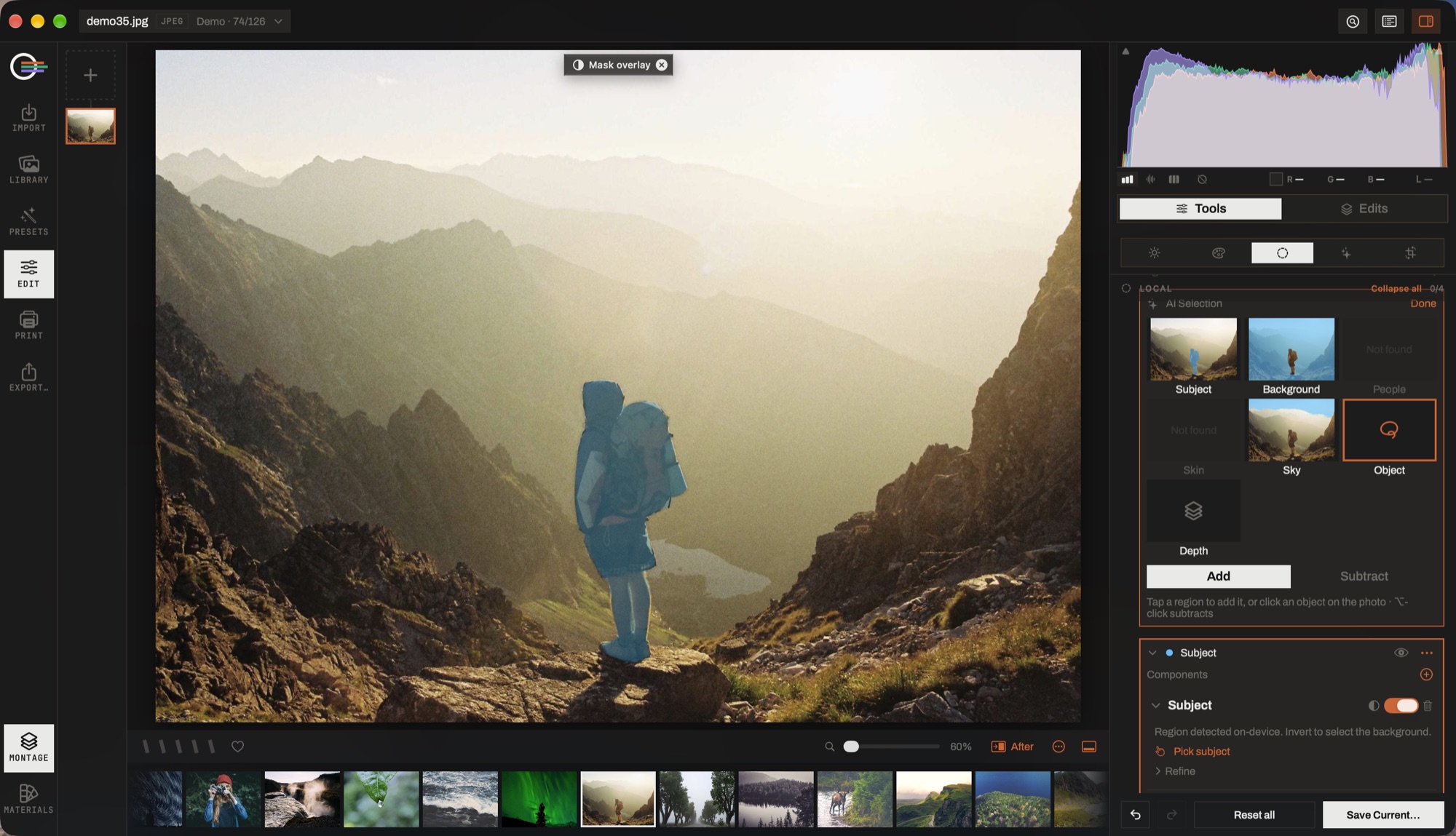
- The overlay. The tint is the mask, drawn on the photograph. The chip takes it off without leaving the tool; the eye on a region silences one at a time.
- The AI selections. Each card is this photograph with what that detector found tinted over it — you choose by looking, not by name. Not found is an answer, and it is the honest one.
- Add · Subtract. A card adds its region; ⌥-clicking an object on the photograph takes one away. Object and Depth arm the canvas instead, because they need you to say which.
- The region. A named part of the photograph. It answers where, and nothing else — what to do there lives in the tools.
- A component. Its kind, its own switch, and Refine: density, feather, expand, edge-aware and wet edge, folded away until you want them.
- Regions. Several may sit here, and a tool anywhere in the app can point at any of them rather than keeping a copy.
Regions and components
A region is a list of components combined with add, subtract and intersect. Select a sky once and an exposure change, a curve, a grading, a filter and an overlay can all sit on it; refine the sky and every one of them follows.
Each component can be switched off on its own, which is how you find out what a subtract is really doing. A component list that is not empty but has nothing switched on resolves to nothing selected, not to the whole frame — turning a mask off must not do the opposite of turning it off.
The kinds of component
- Brush
- Painted, with size, feather and flow. [ and ] change the size.
- Linear
- The graduated filter.
- Radial
- An ellipse you draw on the photograph rather than one that appears in the middle. It turns, and the two outlines are themselves draggable: the outer one is the falloff, the inner one the size.
- Lasso / polygon
- Click to place vertices, or drag to lasso. The vertices stay editable.
- Luminance range
- By brightness, with a soft band at each end.
- Colour range
- By colour, with a tolerance.
- Colour point
- A sampled colour inside a falloff, measured separately in luminance and in chroma — which is what tells a bright blue sky from a dark blue jacket.
- Depth
- By distance, off the estimated depth map. What a click selects is read from the photograph's own depth histogram, so it means the same thing on a portrait and on a valley.
The AI selections
Subject, background, people, skin, sky, and any object you click. They are offered as cards that show the region drawn on your own photograph — hover one to preview it on the picture, tap it to add it — rather than as names you have to try in order to find out what they select. A detector that found nothing says so on its card.
Object and Depth are the two that arm the canvas instead: one needs a click to know which object, the other to know which distance.
The detectors always analyze the source photograph, never what the edit has done to it, so a mask made after heavy grading still finds the sky.
Refining an edge
Every component carries the same refinements, folded behind a chevron with a dot when any of them is off neutral.
- Invert
- Per use, not per region: the same sky can be inverted in one tool and not in another.
- Density
- How strongly the region applies at all.
- Feather
- How soft the boundary is.
- Expand
- Grow or shrink the region.
- Edge-aware
- Refit the boundary against the photograph's own edges — the difference between a mask that follows a skyline and one that cuts through it.
- Wet edge
- Breaks the boundary into fingers and fringe, so it looks as though nobody chose it. The interior is untouchable by construction: this can only ever move the edge.
The overlay
The red tint shows what is selected. It hides for as long as you drag a slider — you are adjusting the very pixels it covers — and comes back when you let go.
- Show / hide the mask overlay
- O
- Leave mask editing
- Esc
A chip floats over the canvas whenever a tint is showing, with an ✕ that both hides it and leaves mask editing — because hiding alone leaves an open list still tinting, and leaving alone leaves the tint on somebody else's panel.
Which tools can be masked
Eight tools carry their own Masks tab — Basic, Tone Curve, HSL, Black & White, Colour Grading, Detail, Gradient Map and Enhance — so a curve can be put on the sky alone without leaving the panel. Overlay layers and Filter Bench filters carry one too.
What is deliberately not maskable: geometry and camera interpretation, because a masked distortion correction has no meaning — a lens bends the whole frame — and the tools whose strokes already are the region: retouch, clone, dodge & burn, liquify.